Monday,march 10,2014.
Cara Menjalankan Android Di Windows

Anda tertarik mencoba Android? Namun tak memiliki perangkat tersebut? Anda dapat mencobanya melalui Android Emulator. Ada 3 emulator yang direkomendasikan. Inilah rekomendasi emulator Android menurut hptekno.
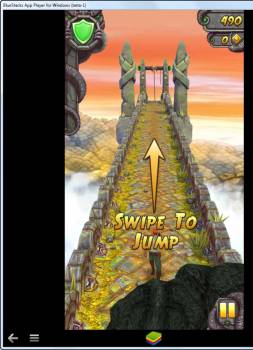
Bluestacks tidak sepenuhnya dapat menggantikan pengalaman menggunakan Android. Bluestacks lebih tepat dikatakan sebagai “app player” yang menjalankan aplikasi Android di PC anda. Maksudnya seperti ini, anda mau menjalankan WhatsApp di PC? Bluestacks dapat melakukan itu.

Anda
hanya perlu akun Google untuk mengunduh aplikasi di Google Play, lalu
menjalankannya di Bluestacks. Bahkan Bluestacks mendukung mengunduh
aplikasi dari Amazon AppStore for Android.
Bila
anda memiliki windows 8 dengan layar sentuh, anda dapat langsung
merasakan pengalaman “lebih” saat menggunakan Android. Misalnya anda
ingin bermain Temple Run. Anda dapat langsung merasakan pengalaman itu
di Windows 8 yang mendukung layar sentuh.

Bluestacks juga dapat berjalan di smartphone atau tablet Android. Install
aplikasi “BlueStacks Cloud Connect” di Google Play untuk sinkronisasi aplikasi
perangkat Android dengan PC.
Kelemahan dari Bluestacks adalah spesifikasi PC yang dibutuhkan berat.
Minimal memiliki 2GB RAM dan Windows XP SP3. Kelebihannya, Bluestacks dapat
diunduh gratis.
Bila anda hendak memasang YouWave, uninstall dahulu Virtual Box agar tak
bentrok. YouWave lebih ringan dari Bluestacks namun pengguna hanya diberikan 10
hari trial. Selanjutnya anda harus membayar 

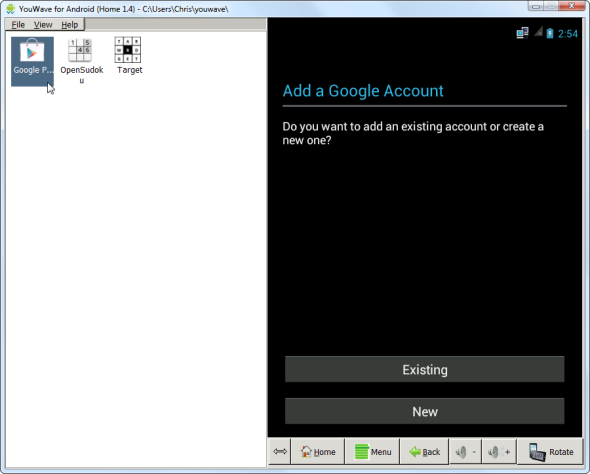
Youwave memberikan tampilan Android secara penuh, seperti halaman Home, app
menu, dan sebagainya. Untuk mengunduh aplikasi, anda perlu mengunduh Google
Play dulu. Klik View, pilih Online Content, dan klik ikon Google Play.
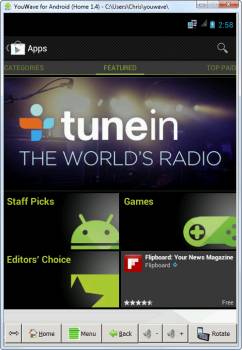
Setelah berhasil mengunduhnya, selanjutnya melalui Google Play anda dapat
menginstal aplikasi yang anda perlukan.

Official Emulator Android dari Google
Google juga menyediakan emulator Android walau (sebenarnya) ditujukan untuk
pengembang. Namun anda tetap dapat mencobanya, terlebih software ini gratis.
Pertama anda perlu mengunduh Java. Lalu mengunduh SDK Tools dari Google (pilih Use an Existing IDE).
Setelah menginstalnya, jalankan SDK Manager dan install file Android yang
direkomendasikan. Klik tombol instal dan SDK Manager akan otomatis mengunduh
dan menginstal software yang dibutuhkan.


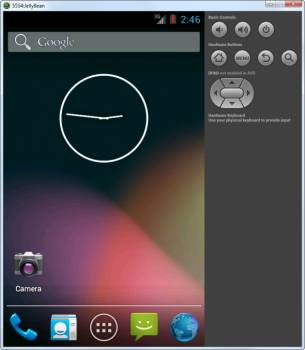
Anda akan melihat virtual device baru di jendela Virtual Device Manager.
Pilihlah, klik tombol Start dan klik Launch untuk menjalankan Android Emulator.
Ini akan membutuhkan waktu, mungkin bermenit-menit, tergantung hardware PC
anda.

Android Emulator dari Google tak sebaik Bluestack atau YouWave. Emulator
ini juga tak memiliki Google Play. Namun anda dapat menginstal aplikasi melalui
cara mengunduh file APK dari aplikasi dan menginstalnya di Emulator.
via makeuseof
Wednesday, October 23, 2013
Cara Menjalankan Android Di Windows
Bluestacks
Bluestacks can not fully replace the experience of using Android. Bluestacks is more correct to say the "app player" that runs Android apps on your PC. That is like this, you want to run WhatsApp on PC? Bluestacks can do that.
You just need a Google account to download the application on Google Play, then run it in the Bluestacks. Bluestacks even support downloading apps from the Amazon Appstore for Android.
If you have Windows 8 with touch screen, you can immediately feel the experience "more" when using Android. Suppose you want to play Temple Run. You can immediately feel that experience in Windows 8 which supports touch screen.
Bluestacks is a weakness of the PC specifications required weight. Have a minimum of 2GB of RAM and Windows XP SP3. The surplus, Bluestacks can be downloaded for free.
YouWave

Youwave Android gives full display, such as the Home page, the app menu, and so on. To download the application, you need to download Google Play first. Click View, select Online Content, and click the Google Play. After a successful download, the next via Google Play you can install the application you need.
Official Emulator Android dari Google
Google also provides the Android emulator though (actually) is intended for developers. But you can still try it, especially this software for free. First you need to download Java. Then download the SDK Tools from Google (select Use an Existing IDE).
After the install, run the SDK Manager and install Android file is recommended. Click the install button and the SDK Manager will automatically download and install the required software..
via MakeUseOf


No comments:
Post a Comment